Step 01
Install the WordPress plugin
Upload the Quickli Share ZIP in WordPress and activate it. That gives your site the unlisted share route and REST API.
Quickli pairs an Obsidian plugin with a WordPress plugin so you can publish notes as unlisted pages, add passwords, set expiry, and revoke links without leaving your vault.
Use your own WordPress site. No hosted Quickli account, no separate publishing dashboard.
Quickli is not a SaaS app. It is a small bridge between your Obsidian vault and your own WordPress site.
Upload the Quickli Share ZIP in WordPress and activate it. That gives your site the unlisted share route and REST API.
Copy the plugin folder into your vault's Community Plugins directory, enable it, and enter your WordPress application password.
Publish a note, add a password or expiry if needed, then copy, open, update, or revoke the share directly from Obsidian.
Quickli has one ZIP for WordPress and one ZIP for Obsidian. Use both if you want the full flow shown on this page.
Installs the REST endpoint, unlisted `/q/
quickli-landing.pages.dev/downloads/quickli-wordpress-plugin.zip
Download WordPress plugin
Adds the share modal, share status, password updates, revoke action, and optional local image uploads inside Obsidian.
quickli-landing.pages.dev/downloads/quickli-obsidian-plugin.zip
Download Obsidian plugin
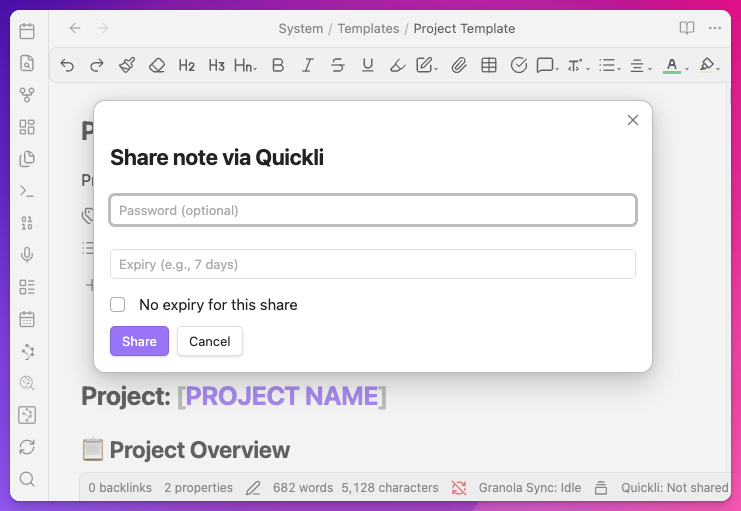
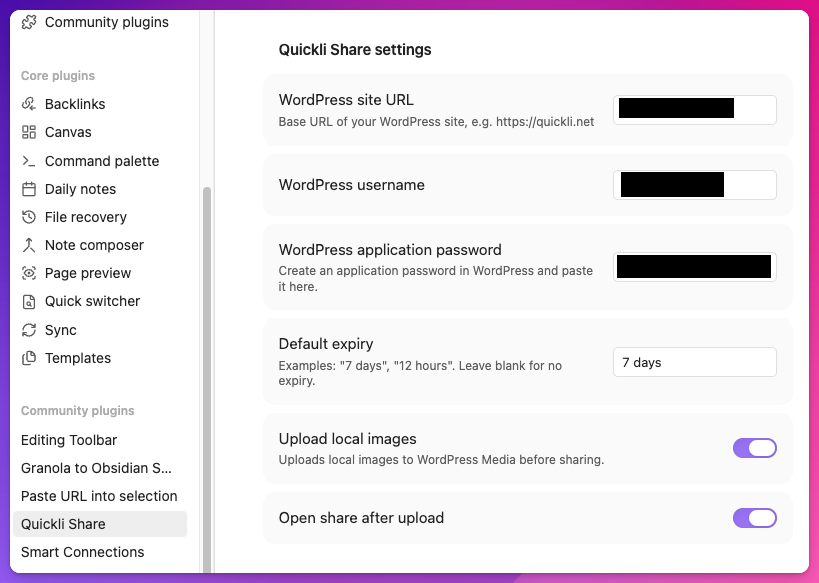
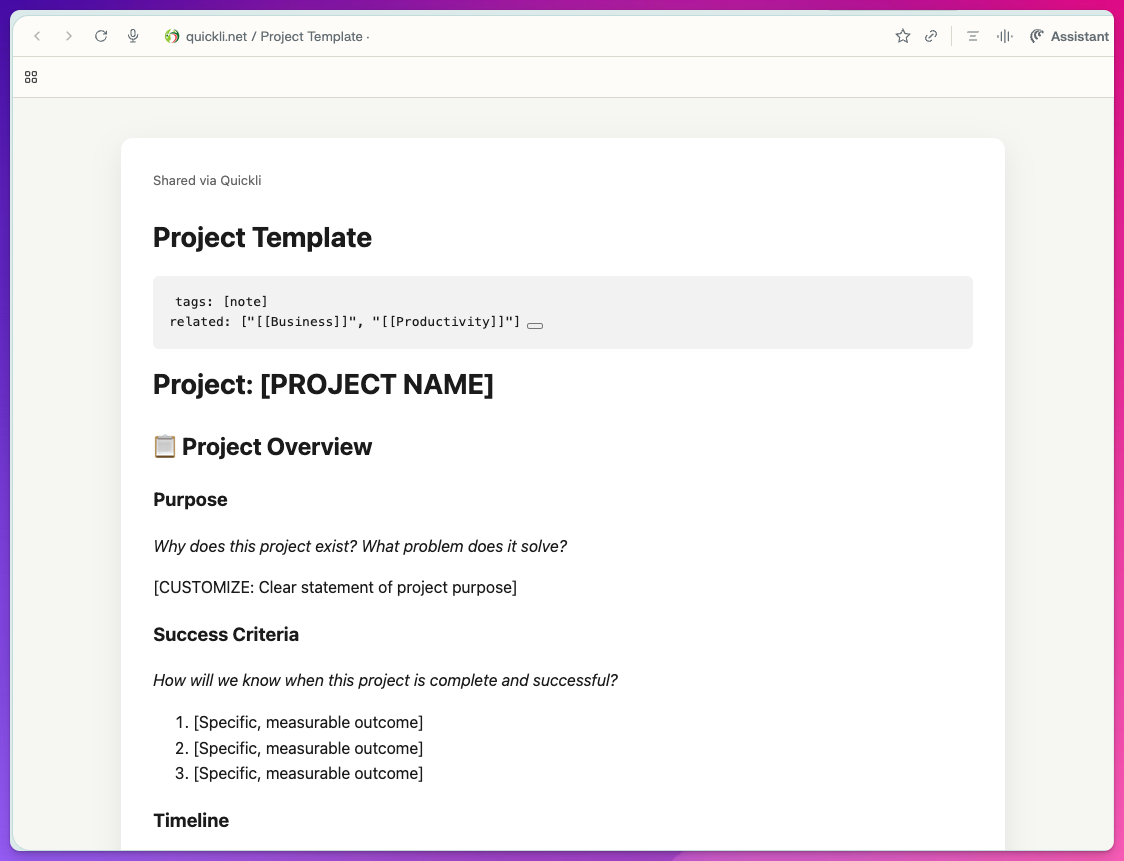
These are real sanitized product views from the repository. They show the setup, the share modal, and the resulting reading page.
Add the base URL, username, application password, default expiry, and media upload preferences in the plugin settings.
Open the modal, set an optional password, choose expiry, or leave the share open-ended if the note should stay available.
Readers get an uncluttered note page instead of a blog post shell. You keep the source in Obsidian and control access from there.
Quickli keeps the authoring workflow in Obsidian and uses your own WordPress site only as the delivery layer. The share path stays lightweight and reversible.
No. Quickli uses your own WordPress site and your own Obsidian vault. There is no separate hosted Quickli account in this repo.
Yes. The WordPress plugin runs on your site, the Obsidian plugin runs locally in your vault, and the source code is in the public GitHub repo.
If you enable image upload, Quickli uploads local images to the WordPress Media library before publishing and replaces the links in the shared output.
Yes. Existing shares can be updated, password state can change, and links can be revoked from Obsidian without creating duplicates.
No. The current quickli.net root still serves an older WordPress homepage. This Pages-based landing page is the new product-facing version.
https://github.com/MediaPublishing/quickli